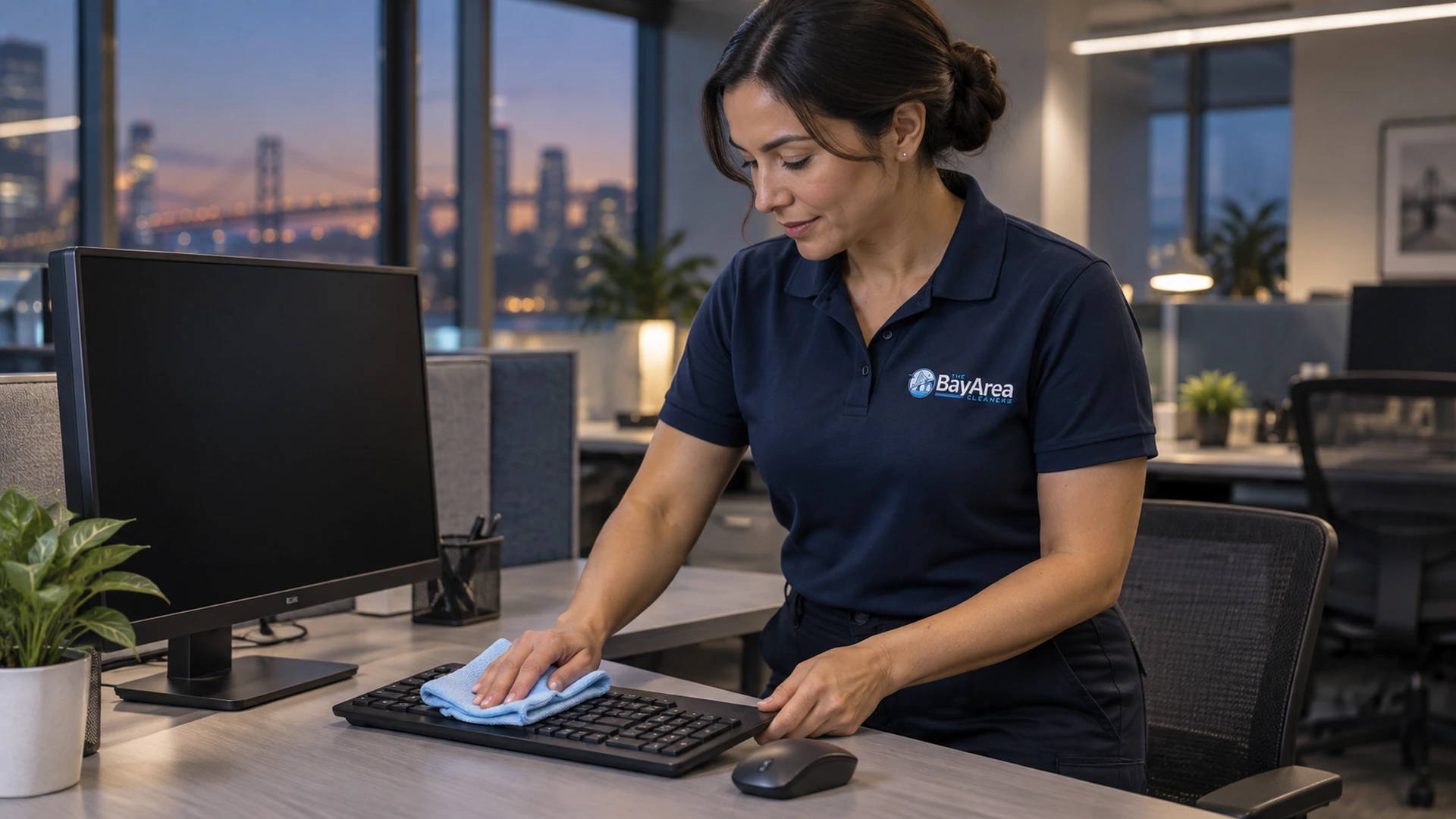
A shared keyboard gets cleaned in the same order on every brand: shut it down, get the crumbs out, then wipe it with a cloth that’s damp, never wet. Microsoft, Apple, Logitech and Lenovo all tell owners to switch off or disconnect first, and Microsoft, Apple and Logitech say to keep liquid off the device itself. That order is the safest base for how to clean keyboard surfaces on desks that more than one person uses.
The quick version: Lock the screen, then unplug the keyboard or switch it off, and take out removable batteries. Turn the keyboard upside down and tap it, then clear the gaps with compressed air or a soft brush. Wipe with a lint-free cloth that’s damp, never wet, and never spray the device itself. A cloth lightly dampened with 70% isopropyl alcohol fits most makers’ rules, but Logitech’s routine swab is weaker and it wants a spot test first. Keep bleach off. Leave keycaps on unless the manual says they come off. Wash removable covers on their own and let them dry fully. After a spill, unplug, drain, blot and send the keyboard to IT.
Shut Down, Unplug and Take Out the Batteries First
Every cleaning guide cited here puts switching off or disconnecting ahead of cleaning. A computer cleaning sheet on the Ohio Auditor of State’s UAN site says to turn off the computer and everything attached to it, then disconnect them, which reduces the chance of a shock. Microsoft tells owners to disconnect a wired device and take the batteries out of a wireless one before cleaning.
Logitech adds a short wait. It says to switch the device off and wait 5 to 10 seconds before you start. Apple says to switch off a wireless keyboard or mouse and remove the batteries if they come out, or unplug a wired one from the computer. If your wireless set has rechargeable batteries sealed inside, switching it off is the step you can take.
On a shared desk, there’s one more reason to start here. A connected keyboard types into whatever window is open. Lock the screen first, then unplug, so a stray press can’t send a half-written email or delete a file.
Takeaway: Lock the screen, then unplug or switch off the keyboard and mouse. Take out removable batteries before any cloth touches the device.
Get the Crumbs Out Before Any Cloth
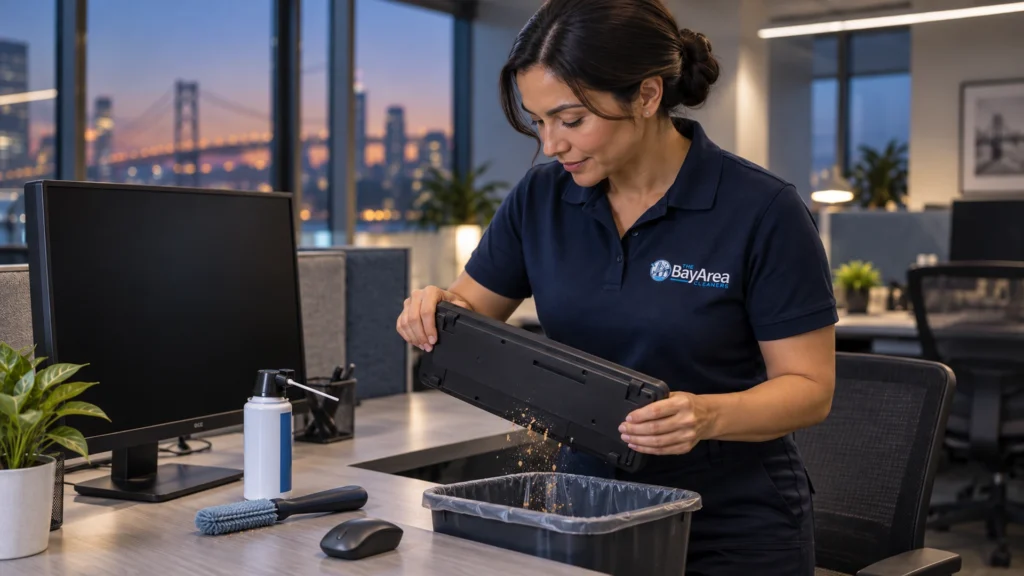
Most of what’s in a keyboard is dry: crumbs, dust, hair and lint. Dry debris comes out first, so the first step in how to clean keyboard surfaces needs no liquid at all. Microsoft’s first step is to hold the keyboard upside down and tap it gently so loose debris falls out. Do it over a trash can or a sheet of paper, not over the desk.
You may also like: How a Clean Office Affects Focus and Productivity?
Next comes the debris stuck between the keycaps, which tapping won’t shake loose. Microsoft and Logitech both suggest compressed air, and Logitech names cold air from a hair dryer as an option. The Ohio sheet suggests a vacuum for the slots and holes between keycaps. Lenovo lists a soft brush, a cloth or compressed air when the product’s own instructions call for them.
Short bursts work better than a long blast. HP’s keyboard guide says to hold the can upright and warns that tilting it or turning it upside down can release liquid propellant. That liquid is the last thing you want between the keycaps.
Sweep from one side of the board to the other so the debris leaves at the far edge of the frame. A small, clean, soft brush reaches the rows along the frame that air tends to miss. HP suggests a full clean at least once a month, with weekly quick cleans for anyone who uses the keyboard heavily or eats near it.
Takeaway: Tap the keyboard upside down over a bin, then clear the gaps with short bursts of air, a vacuum or a soft brush. Keep the can upright.
How to Clean Keyboard Surfaces Without Getting Liquid Inside
Once the crumbs are out, the surface gets a damp wipe. Logitech says to lightly moisten a soft, lint-free cloth with tap water. Microsoft suggests mild soap and water on a lint-free cloth or cotton swab, and warns against letting water into the keyboard. Wring the cloth until it no longer drips.
You may also like: Workplace Sanitation in San Jose Offices: How It Works
The cloth carries the liquid, never the keyboard. Logitech says not to put cleaning liquids directly on a device, and to spray the cloth rather than the device when you use a spray. Apple says not to spray cleaning products onto its products and to keep moisture out of every opening. Logitech and Apple both say never to submerge a device.
Alcohol and bleach
One figure covers most of the makers here. A cloth lightly dampened with 70% isopropyl alcohol fits Microsoft’s limit of 70% or less and Apple’s list, which names 70% isopropyl wipes. Apple adds 75% ethyl alcohol wipes and Clorox Disinfecting Wipes for hard, nonporous surfaces. HP lists isopropyl alcohol of 70% or higher, so 70% is the one figure that fits HP, Microsoft and Apple.
Logitech is more cautious. Its routine option is alcohol swabs under 25%, and before rubbing alcohol goes on a stubborn spot, it says to test it on a hidden area first. HP’s guide adds one caution: keep alcohol off the printed letters on the keycaps.
The makers that mention bleach agree on it. Logitech rules out bleach, acetone, strong solvents and abrasives. Apple rules out products with bleach or hydrogen peroxide, and Lenovo warns against whitening liquids and solvents.
If your cleaning cart carries bleach for restrooms, it shouldn’t come near a keyboard. Before you buy wipes in bulk for a whole floor, check the label against the makers of the keyboards you actually have.
Takeaway: Wipe with a damp, lint-free cloth, never spray the keyboard and keep liquid out of every opening. Use the maker’s alcohol limit and keep bleach off.
Keycaps, Backlit Boards and the Gaps Between
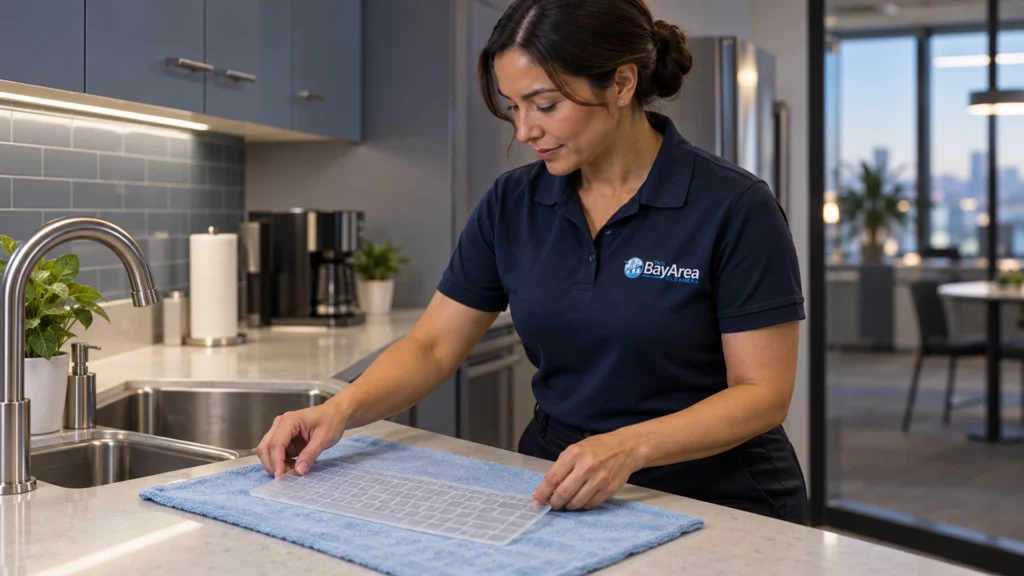
Keycaps look easy to pop off, and on some boards they are. Lenovo says not to pull off a keycap unless the product documentation confirms it’s removable.
On backlit keyboards, Lenovo says not to insert swabs under the keycaps. Clean the tops and sides of each cap with the damp cloth, and leave what’s underneath to the crumb removal.
Mechanical keyboards often have removable caps, but the manual still decides. If the documentation shows a puller and says the caps come off, take a photo of the layout first.
HP’s guide suggests soaking the caps in warm, soapy water for 30 minutes. Rinse them, lay them out on a towel and let them dry completely. Only then press them back on, one row at a time, checking each against your photo.
If your manual doesn’t say the caps come off, treat the board like any other. When you can’t find the manual, ask IT before anyone pries at a cap.
Takeaway: Leave keycaps on unless the manual says they come off. Don’t push swabs under the caps on a backlit keyboard.
How to Clean Keyboard Cover Skins and Protectors
A thin silicone or plastic skin keeps crumbs and spills off the board itself. Lenovo says to use a keyboard cover only if it’s designed and approved for that specific model. A cover that doesn’t fit the model leaves gaps where crumbs get through, and Lenovo adds that a cover doesn’t make a keyboard spill-proof.
The cover needs its own routine, apart from the keyboard. Check the cover’s packaging for its own care steps first. If it has none, here’s how to clean keyboard cover skins without trapping water under them:
- Peel the cover off the keyboard, starting at one corner.
- Shake loose crumbs into a trash can.
- Wash the cover in warm water with a drop of mild dish soap.
- Rinse it until no soap is left.
- Pat it dry with a lint-free towel, then let it air dry flat.
- Put it back only when both sides are completely dry.
When you work out how to clean keyboard cover skins, plan as much time for drying as for washing. A damp cover traps moisture against the keyboard, and that turns a cover from protection into the problem.
If you look after covers on a whole floor, keep a spare set so a wet cover never goes back on before it’s dry. Mark each spare with the keyboard model it fits, so it goes back on the right board. When a cover tears, yellows or stops sitting flat, replace it.
Takeaway: Use a cover made for the model, wash it on its own with mild soap and let it dry completely before it goes back on.
How to Clean Keyboard and Mouse Sets at Hot Desks
Hot desks change who touches each set during a single day. The same person no longer cleans their own keyboard, so wipe the set at handover: the person leaving wipes it before the next person sits down.
You may also like: What Does a Commercial Cleaner Do in Oakland Workplaces?
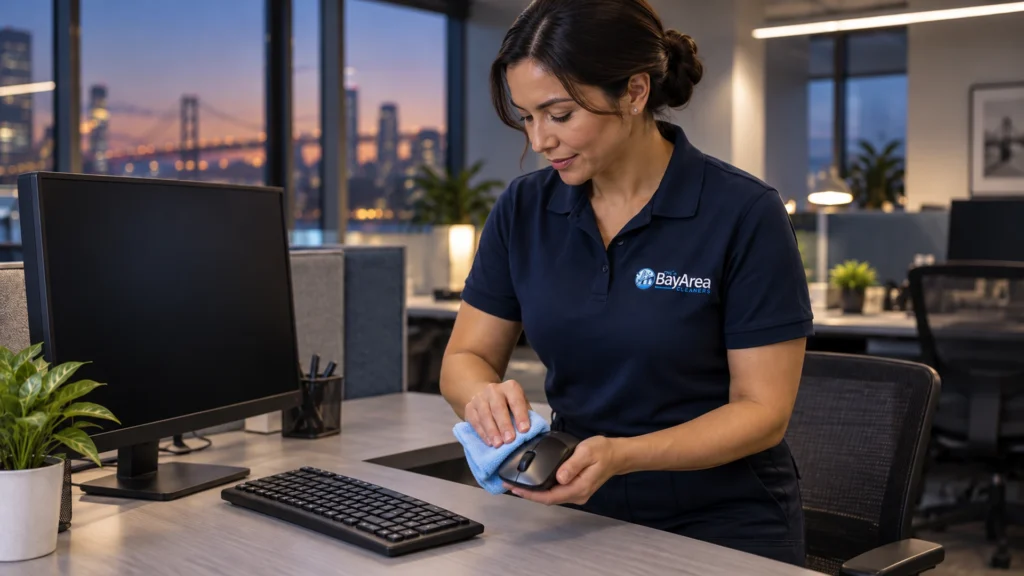
The mouse follows the same rules as the keyboard. When Microsoft explains how to clean keyboard and mouse devices, its mouse steps cover the outer surface, the wheel and the optical sensor, using a lint-free cloth or swab dampened with mild soap and water. Apple says to use a lint-free cloth lightly moistened with water on the outside of its mice.
The Ohio sheet says to wipe the outside of the mouse with a slightly damp cloth. Logitech suggests a soft cloth lightly moistened with lens cleaner for mice and presentation devices. Whatever you use, dry the sensor window and don’t push anything into it.
For a whole floor of hot desks, put a few lint-free cloths at each desk with a note on which products your IT team allows. TBAC’s office cleaning covers shared equipment dusted and disinfected without disturbing work in progress, so tell your provider which products IT clears for keyboards. Tell it which keyboards sit on personal desks, too, so the crew wipes around them instead of over them.
Takeaway: Give each hot desk lint-free cloths and a short list of allowed products. Wipe the mouse, its wheel and its sensor with a damp cloth, then dry them.
Laptops at Docking Stations
Many hot desks pair a shared keyboard and mouse with the laptop each person brings. The shared set follows the steps in this guide. The laptop’s own keyboard belongs to its user and IT, and how to clean keyboard surfaces on a laptop starts differently, since a laptop keyboard can’t be unplugged the way an external keyboard can.
HP’s guide says to shut down the laptop and unplug it before cleaning. For laptop keyboards, it suggests a cotton swab lightly moistened with isopropyl alcohol between the keycaps. Lenovo’s rule on backlit boards still applies, so keep the swab between the caps, not under them.
Apple says to keep moisture out of every opening and to unplug all external cables first. The openings sit right next to a laptop’s keys and hinge, so how to clean keyboard surfaces there comes down to a cloth that’s almost dry near the edges.
Undock the laptop before anyone wipes the shared set, and set it aside on a clear part of the desk. Undocking keeps a stray press on the external keyboard out of the user’s open files, and it gets cables out of the way.
Takeaway: Shut down and unplug a laptop before cleaning its keyboard. Use a barely damp swab between the caps and keep moisture away from the openings.
A Spill Plan for the Desk, the Floor and the Keyboard
A spill touches three things: the keyboard, the desk and the floor. The person at the desk unplugs the keyboard right away. A cleaner handles the desk and floor, and IT decides what happens to the device.
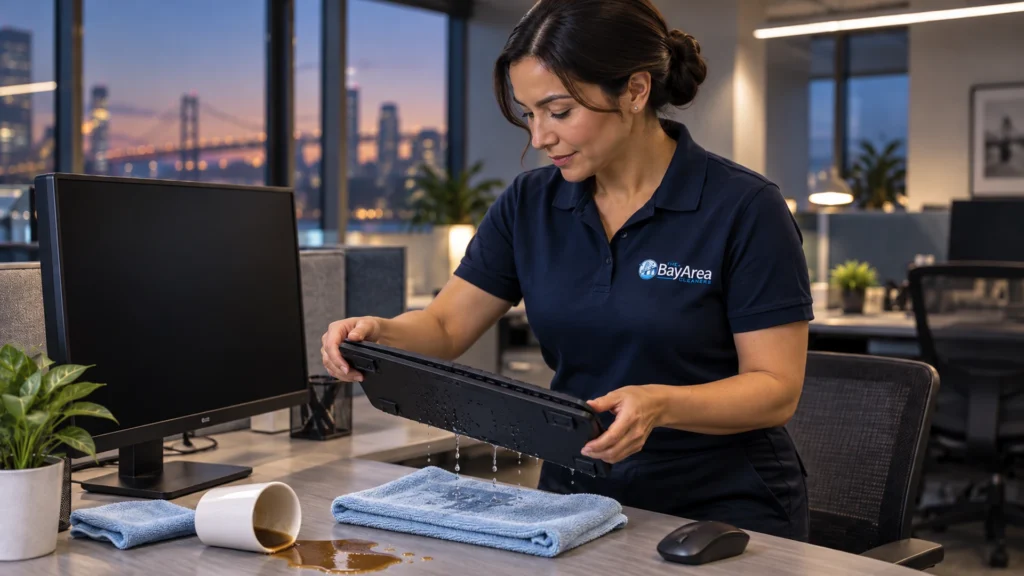
Lenovo says that if liquid gets into a keyboard, keep it switched off and contact the device’s support team. HP’s steps for how to clean keyboard after spill damage work for a desktop or a laptop keyboard:
- Unplug the keyboard, or shut down and unplug the laptop, right away.
- Turn the keyboard upside down to drain the excess liquid.
- Blot the wet area with a lint-free cloth instead of wiping it.
- Leave it to dry completely, at least 48 hours by HP’s count, before anyone uses it.
Don’t plug it back in to test it, and don’t dry it with heat. Leave the inside to IT. That’s the safe answer to how to clean keyboard after spill damage, since the liquid you can’t see does the harm.
A day porter who handles spills within minutes can clean up the desk and floor, and the device goes to IT. Write the desk and floor cleanup into your recurring cleaning agreement and leave the device out of it, so the crew never handles the inside of a device.
When a keyboard can’t be saved
Some keyboards don’t come back, even when someone follows every step for how to clean keyboard after spill damage. The California Department of Toxic Substances Control defines e-waste as any unwanted electronic device and says e-waste can’t go in the trash. It says generators are responsible for determining whether their waste is hazardous, and it lists businesses among those that produce e-waste.
Send dead keyboards and mice to the e-waste recycler your IT team already uses, not the office dumpster. If you don’t have one, ask your building manager which recycler the other tenants use. Keep two or three boxed spares with IT, so a ruined board doesn’t stop work until the next order arrives.
Takeaway: Unplug at once, drain, blot and send the keyboard to IT. Clean the desk and floor separately, and recycle dead keyboards as e-waste.
Frequently Asked Questions
Which wipes can you use when you work out how to clean keyboard surfaces on shared desks?
Apple and Logitech list wipes, with limits. Apple allows 70% isopropyl wipes or Clorox Disinfecting Wipes on the hard, nonporous surfaces of its products, and Logitech suggests fragrance-free disinfecting wipes. Squeeze out extra liquid first so nothing drips between the keycaps.
Can a cover go back on right after you follow the steps for how to clean keyboard cover skins?
Only when both sides are completely dry. Lenovo says a cover doesn’t make a keyboard spill-proof, so a damp one only adds risk.
Where do batteries fit into how to clean keyboard and mouse sets?
At the start. Take out removable batteries, or switch the device off if they’re sealed inside. Microsoft says to remove a wireless device’s batteries, and Apple says the same for devices with removable ones. The wipe itself is the same damp, lint-free cloth.
How long should a keyboard stay out of use after you follow the steps for how to clean keyboard after spill damage?
At least 48 hours by HP’s count, and longer if IT says so. Liquid can sit under the keycaps after the surface dries, and Lenovo says to keep the keyboard off and contact support, so IT decides when it goes back on a desk.
Conclusion
Shared keyboards don’t need a special product. Disconnect, clear the crumbs, wipe with a damp cloth and let everything dry. Keep liquid on the cloth and out of the openings, use the maker’s alcohol limit and leave keycaps alone unless the manual says otherwise.
Covers and mice follow the same rules, with a full dry before anything goes back on the desk. Spills belong to IT, and dead boards belong in e-waste. With cloths at each hot desk and a spill plan everyone knows, a shared set gets cleaned the same way at every desk. If your team keeps one rule about how to clean keyboard sets, make it this: the cloth carries the liquid, never the keyboard.
The Bay Area Cleaners cleans offices from Vallejo to San Mateo, including shared equipment at workstations, with after-hours, early-morning and weekend scheduling. Call 707-656-9339 for a free estimate.